
The Add Template screen allows administrators to create new templates for various communication types (Email, SMS, Document, Call). These templates are used in client notifications and can be associated with loan products or tagged for easy management.
Navigation Path:
Main Menu > Templates > Create Template
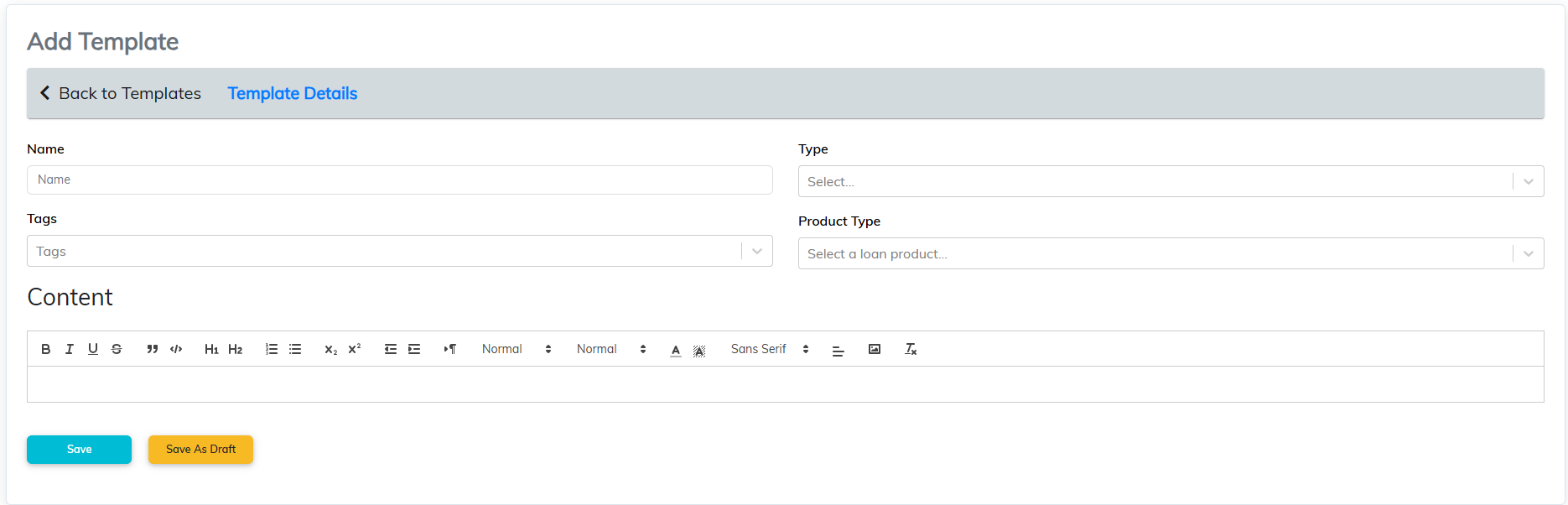
Add Template Fields
|
Field
|
Description
|
|
Name
|
Enter a title that clearly identifies the template
|
|
Tags
|
Add keywords to categorise or filter the template later
|
|
Type
|
Select the communication type: Document, Email, Text (SMS), Phone Call
|
|
Product Type
|
Assign the template to a specific loan product if applicable
|
|
Content
|
Compose the body of the message using the rich text editor
|
Content Editor Features
|
Toolbar Options
|
Function
|
|
B, I, U
|
Bold, Italics, Underline text
|
|
Quote & Code blocks
|
Insert quote or formatted code
|
|
Headings (H1, H2)
|
Add headings for formatting
|
|
Bullet & Number Lists
|
Create ordered/unordered lists
|
|
x₂, x²
|
Subscript and superscript
|
|
Alignment
|
Align text left, centre, right
|
|
Fonts & Sizes
|
Adjust font family and size
|
|
Text Colour
|
Highlight or recolour text
|
|
Insert Image
|
Embed an image
|
|
Insert Link
|
Add hyperlinks
|
How To Guides
1. How to Create a New Template
- Click the + New Template button in the Templates section.
- In the Name field, enter a title for the template.
- Under Tags, enter one or more keywords to classify the template.
- In the Type dropdown, choose one of the following:
- Document
- Text (SMS)
- Phone Call
- Under Product Type, select a loan product to associate the template with (optional).
- Use the Content editor to write the body of your template. You may use placeholders, formatting, and images as needed.
2. How to Save a Template
- To publish immediately: Click the Save button.
- To return and edit later: Click Save As Draft.
3. How to Return to Template List
Click Back to Templates in the upper left of the screen to return without saving.
Comments
0 comments
Please sign in to leave a comment.