
The Notifications section allows administrators to manage and test automated alerts that are sent to users based on system events. These alerts can be configured to use predefined templates and can be triggered via email, SMS, or other communication types.
Navigation Path:
Main Menu > Notifications > View Notifications
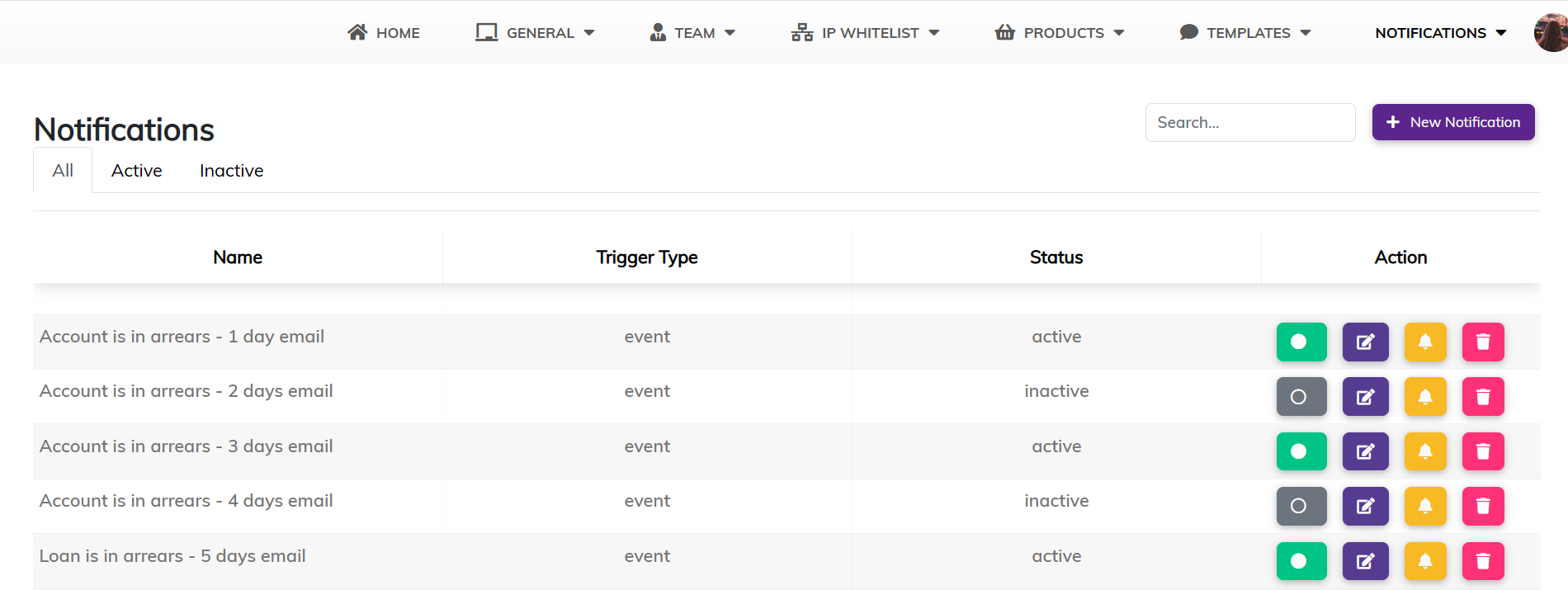
Notifications Dashboard Overview
|
Feature
|
Description
|
|
Tabs
|
View all notifications or filter by Active and Inactive status
|
|
Search Bar
|
Search for notifications by name
|
|
+ New Notification
|
Click to create a new notification
|
|
Trigger Type
|
Displays the condition or event that activates the notification
|
|
Status
|
Displays whether a notification is active or inactive
|
|
Actions Column
|
Manage each notification using the buttons explained below
|
Actions Column Buttons
|
Button
|
Icon Colour
|
Function
|
|
Activate/Deactivate
|
Green / Grey
|
Toggle the notification’s status
|
|
Edit
|
Purple
|
Opens the edit form for the notification
|
|
Test Notification
|
Yellow
|
Opens a modal to test the notification via email
|
|
Delete
|
Red
|
Removes the notification from the system
|
Test Notification Modal
When you click the yellow bell icon, a pop-up modal titled Test Notification appears.
|
Field
|
Description
|
|
Loan number to test
|
Enter a valid loan number to simulate the trigger condition
|
|
Email Recipients
|
Enter one or more email addresses (comma-separated) to receive the test
|
|
Send test email
|
Click this button to send the test notification to the specified recipient(s)
|
How To Guides
1. How to View Notifications
- Navigate to Notifications > View Notifications.
- Use the tabs or the search bar to locate specific notifications.
2. How to Create a New Notification
- Click + New Notification.
- Fill in the required fields, such as name, trigger type, template, target, and timing.
- Click Save to activate or Save as Draft.
For more information on how to create a notification, please click here.
3. How to Edit a Notification
- Click the purple pencil icon beside the notification you want to change.
- Edit the necessary fields.
- Click Save.
4. How to Activate/Deactivate a Notification
- Click the green circle to deactivate (turns grey), or the grey circle to activate (turns green).
5. How to Test a Notification
- Click the yellow bell icon.
- In the Loan number to test field, enter a valid loan number.
- In Email Recipients, input one or more email addresses.
- Click Send test email to simulate the alert and verify its formatting and delivery.
6. How to Delete a Notification
- Click the red bin icon.
- Confirm deletion in the confirmation pop-up.
7. How to Filter Notifications by Status
- Click the Active tab to view only currently enabled notifications.
- Click the Inactive tab to view only disabled notifications.
- Click the All tab to return to the full list.
Comments
0 comments
Please sign in to leave a comment.