
Team Members Management
This section allows administrators to manage all users who have access to the Admin Portal. Here, you can add new users, assign roles, modify permissions, and remove users when necessary.
Purpose:
- To manage user profiles and access levels.
- To define team member roles and assign appropriate permissions.
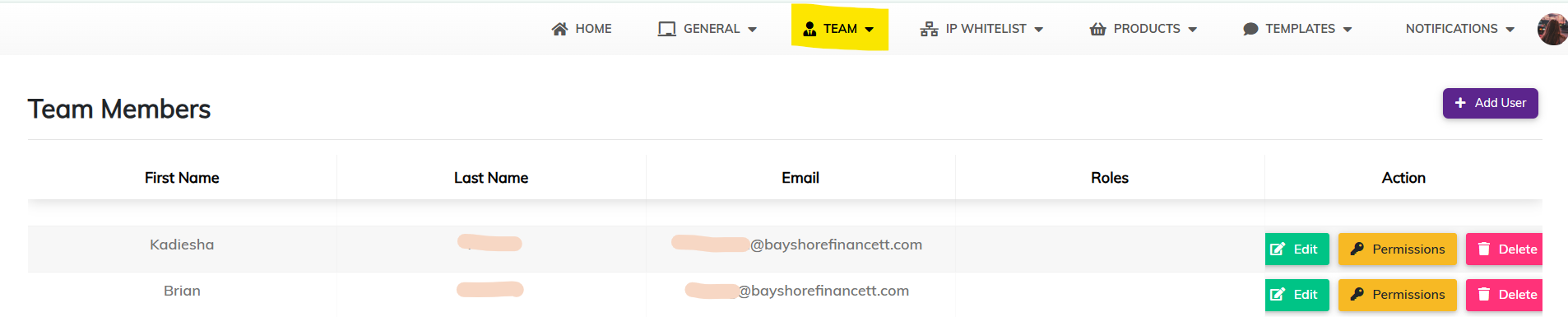
How to Manage Team Members
1. Access the Team Members Section
- Navigate to the top menu and click TEAM.
- Select Manage Users from the dropdown.
Adding a New User
- Click the + Add User button at the top right of the screen.
- Fill in the required fields: First Name, Last Name, Email, Password, Country Access, Phone Number, and Title.
- Click Save to create the user profile.
Editing an Existing User
- Locate the user from the list.
- Click the Edit button in the Action column.
- Update the necessary fields (Name, Email, Password, Country Access, Phone Number, Title).
- Click Save to apply changes.
Assigning Permissions
- Click the Permissions button next to the user.
- Select the permissions you wish to assign to the user based on their role.
- Save the changes to update the user’s access rights.
Tip: Permissions can control access to features like departaments.
Deleting a User
- Click the Delete button beside the user you want to remove.
- Confirm the deletion when prompted.
- The user will be permanently removed from the portal.
Warning: Deleted users cannot be recovered.
Comments
0 comments
Please sign in to leave a comment.