
Managing Loan Products
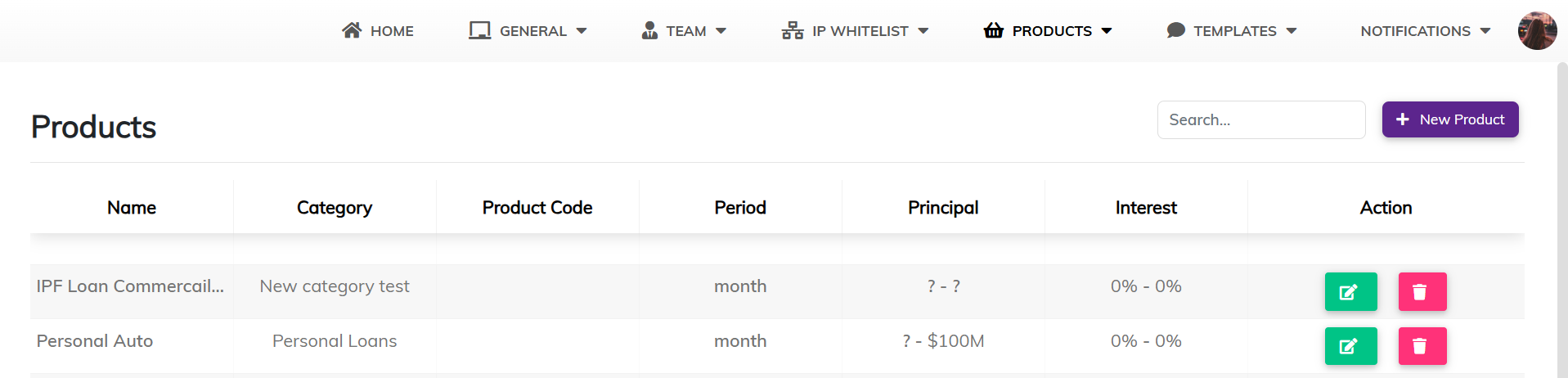
The Products section provides an overview of all loan products currently configured on the platform. Each product entry includes essential loan details such as the category, product code, loan period, principal range, and interest rate.
This area allows administrators to add, update, and remove loan products used throughout the system.
How to Access the Loan Products Page
- In the top menu, click PRODUCTS.
- Select Manage Loan Products from the dropdown.
Features Available on the Product Table
Each product listed includes the following:
|
Field
|
Description
|
|
Name
|
The name of the loan product (e.g. Personal Auto, IPF Loan Commercial).
|
|
Category
|
The classification of the product (e.g. Personal Loans, Business Loans).
|
|
Product Code
|
A unique identifier for the loan product.
|
|
Period
|
Duration of the loan (e.g. month, year).
|
|
Principal
|
The range of loan amounts offered under the product.
|
|
Interest
|
Interest rate applicable to the loan product.
|
|
Action
|
Buttons to edit or delete the product.
|
How to Add a Loan Product
The Add Loan Product section enables administrators to define new financial products offered to clients. This process involves setting loan parameters such as tenure, fees, interest rates, principal ranges, penalties, and linking related templates for communication and documentation.
This functionality ensures consistency across loan types and enables precise control over product definitions.
How to Access the Add Product Page
- Click PRODUCTS in the top menu.
- Select Add Loan Product from the dropdown
- or
- Click the + New Product button on the right-hand side of the Products screen.
Fields Required to Create a Loan Product
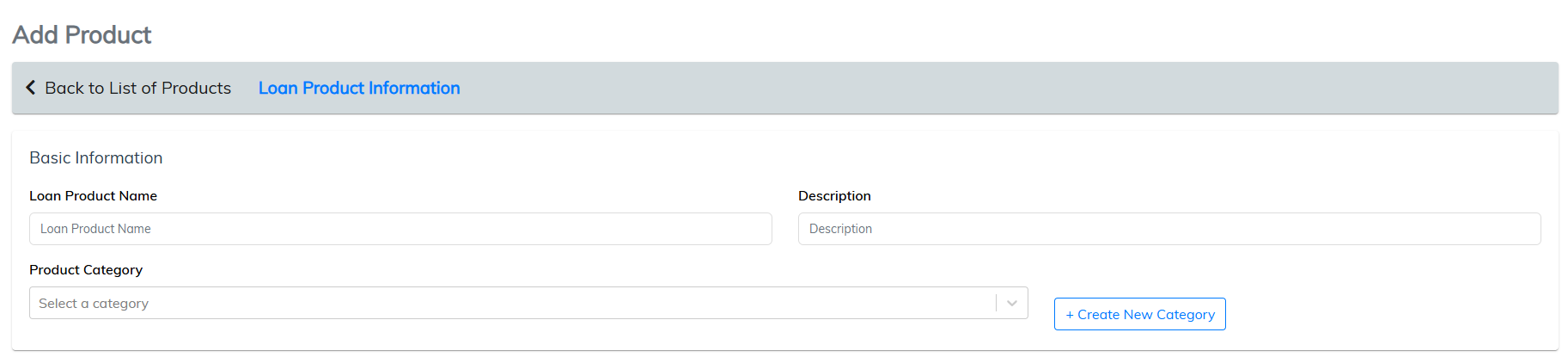
1. Basic Loan Product Information
|
Field
|
Description
|
|
Loan Product Name
|
The official name of the product (e.g. "Personal Auto Loan").
|
|
Description
|
A brief explanation of the product’s purpose.
|
|
Product Category
|
Select an existing category or click + Create New Category to define one.
|
2. Principal Amount Range

|
Field
|
Description
|
|
Principal Range Type
|
Choose one:
|
|
- Fixed Range
|
Specify minimum and maximum principal values in currency.
|
|
- Salary-Based Range
|
Dynamic option (based on user's salary, if supported by system logic).
|
|
Principal Amount Range
|
Enter the lower and upper bounds of the loan value (e.g. $5,000 – $500,000).
|
Note: Minimum principal is mandatory for Fixed Range selection.
3. Interest Settings
|
Field
|
Description
|
|
Interest Rate Type
|
Choose one:
|
|
- Constant
|
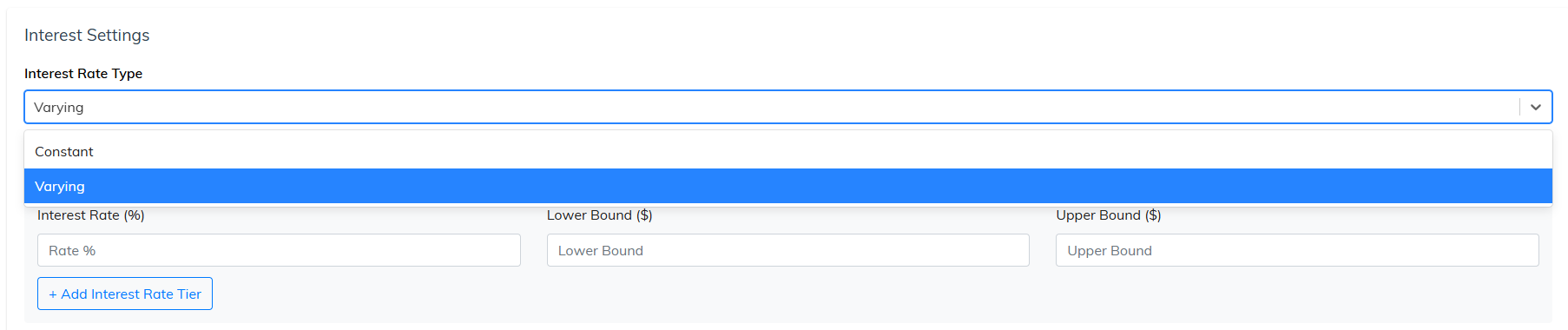
A fixed rate applies to the full tenure.
|
|
- Varying
|
Allows different interest rates across different periods.
|
Constant Interest Rate
Fields Required:
- Interest Rate Type: Select
Constant - Constant Interest Rate (%): Enter a single numeric percentage (e.g. 6.5)
Varying Interest Rate (Tiered Rates)
Fields Required:
|
Field
|
Description
|
|
Interest Rate (%)
|
The interest rate to be applied for that specific range.
|
|
Lower Bound ($)
|
The minimum principal amount where this rate begins to apply.
|
|
Upper Bound ($)
|
The maximum principal amount where this rate stops applying.
|
You can create multiple tiers by clicking + Add Interest Rate Tier.
Tip: Ensure that ranges do not overlap and are listed in ascending order for best accuracy.
4. Tenure and Fees

|
Field
|
Description
|
|
Loan Tenure (Months)
|
Define the minimum and maximum duration of the loan (e.g. 1 to 36 months).
|
|
Processing Fees
|
Choose a fee type: - Fixed Amount, - Percentage of Interest, - Percentage of Principal, - Percentage of Total Installment, Dynamic Processing Fees
|
|
Late Payment Penalties
|
Select a penalty type: - Fixed Amount, - Percentage of Principal, - Percentage of Interest, - Percentage of Total Installment
|
Tip: Using percentages allows dynamic calculation of fees based on the borrower’s loan structure.
5. Product Template (Optional)
|
Field
|
Description
|
|
Select Template
|
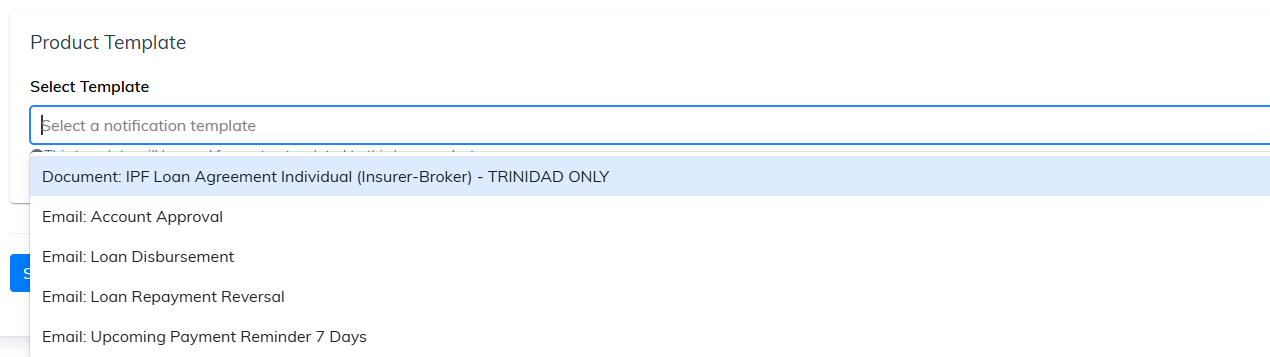
Choose a notification template (e.g. Document or Email) to be associated with this product. These templates are created in the Template section of the admin portal.
|
|
- Examples include:
|
Loan Agreements, Account Approval Notices, Payment Reminders
|
Note: This template will be used for contracts related to this loan product.
Final Step: Save
Click Save Loan Product to complete the process and add the product to your master list.
How to Edit a Loan Product
- Locate the product in the list.
- Click the green Edit button.
- Make the necessary updates to any of the product fields.
- Click Save to apply the changes.
How to Delete a Loan Product
- Locate the product in the list.
- Click the red Delete button.
- Confirm the deletion when prompted.
Warning: Deleting a product will remove it permanently from the platform and may affect linked data or templates.
How to Search for a Product
- Use the Search bar to quickly locate a loan product by name or keyword.
Tip: Keep product names and categories clear and consistent to improve searchability and filtering.
Comments
0 comments
Please sign in to leave a comment.