
Adding a New User
Administrators can add users with specific credentials and permissions to the Admin Portal. Each user account includes personal details, country access, and role-based or custom permissions.
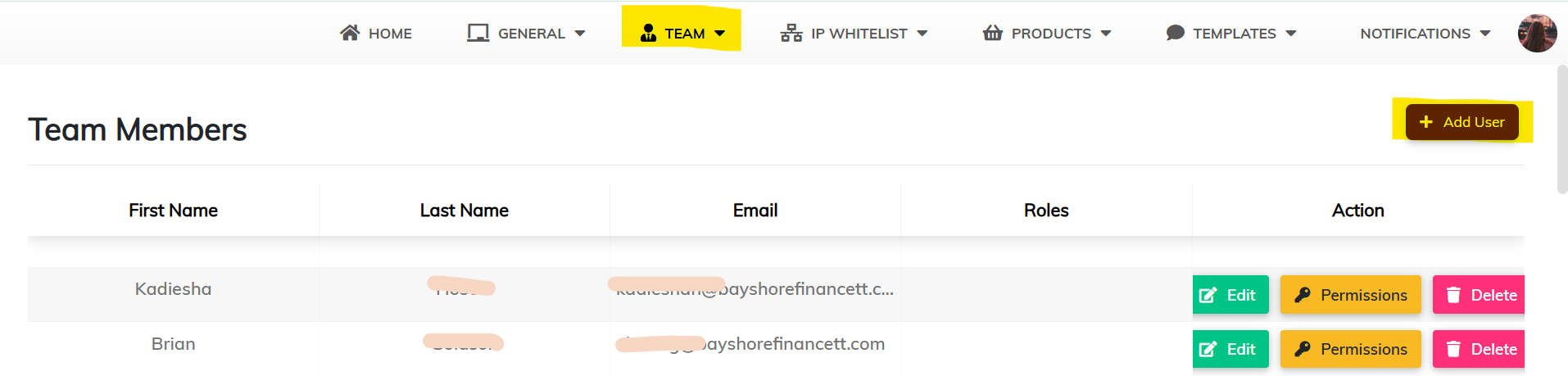
How to Add a User
- Navigate to the Add User Page
- Click TEAM in the top navigation bar.
- Select Add User from the dropdown.
- Or click the + Add User button on the Team Members page.
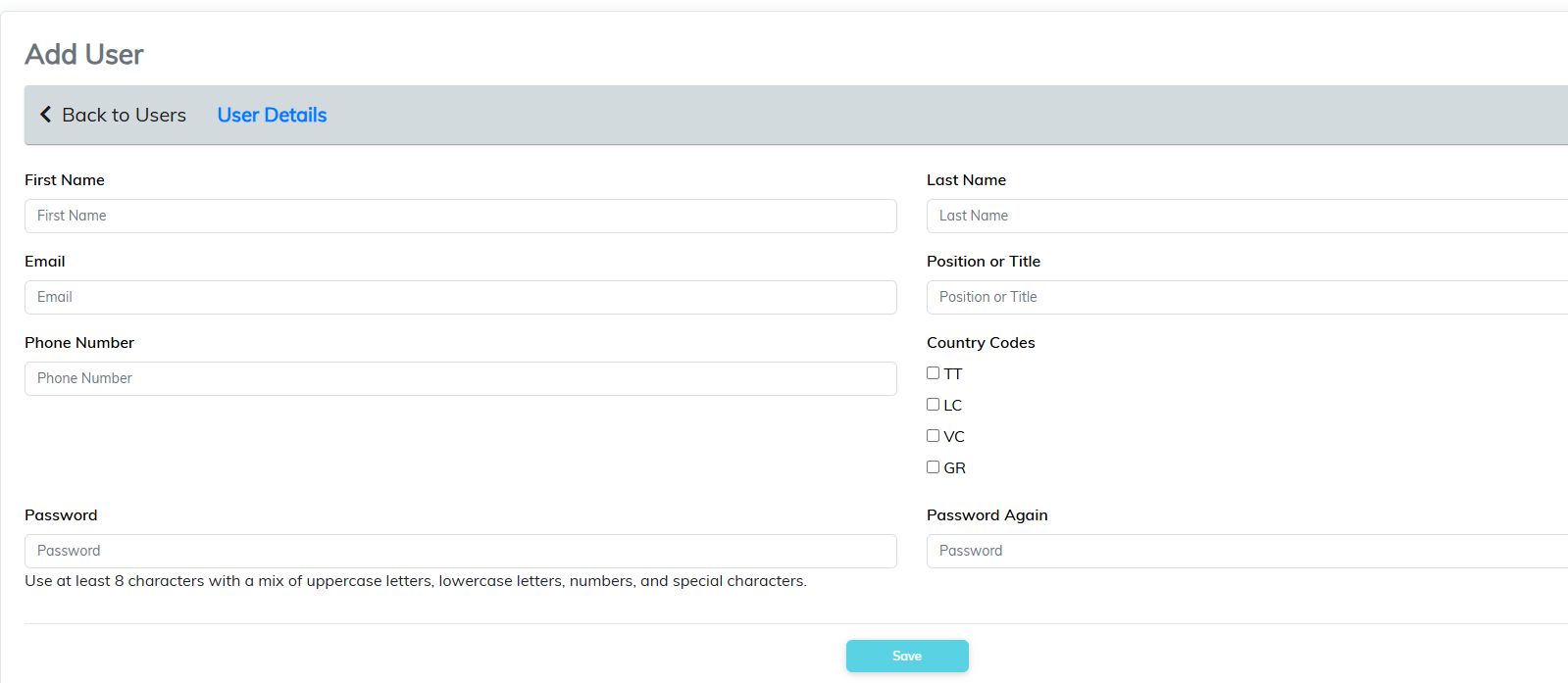
- Enter User Details
- Fill out the form with the following fields:
- First Name and Last Name
- Phone Number
- Position or Title
- Country Codes – Tick applicable countries for which this user should have access (e.g., TT, LC, VC, GR).
- Password and Password Again – Password must be at least 8 characters long with a mix of uppercase letters, lowercase letters, numbers, and special characters.
- Fill out the form with the following fields:
- Click Save
- After completing the form, click the Save button to create the user profile.
Comments
0 comments
Please sign in to leave a comment.